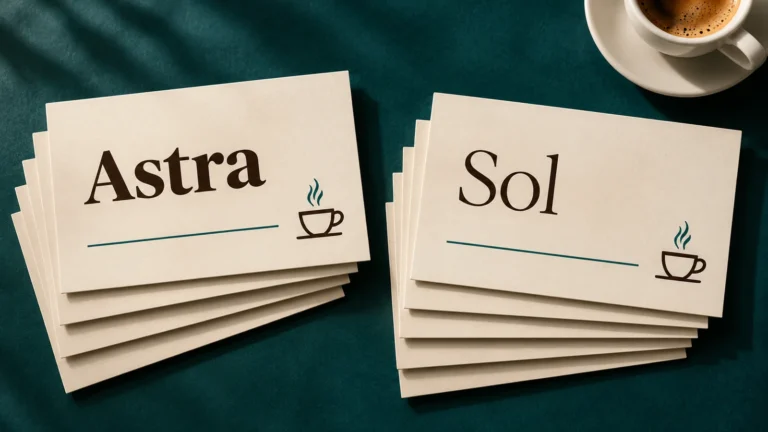
Canva wants to make that part of the process easier. On October 22, 2026, it introduced Canva Craft, its first image-generation model developed by Canva Research. Craft is built with design composition and typography in mind rather than just turning a prompt into a beautiful picture.
Quick answer: Canva Craft is the AI model; Dream Lab is the Canva tool where people can generate and revise images; and Magic Layers is a separate feature for turning suitable flat graphics into editable design elements. Canva says Craft is globally available, but individual features and AI-use limits still depend on your account and plan.
Hands-on test — Updated October 25, 2026
Daily Tool Guide tested Canva Craft-1 2K through Canva Dream Lab using the Premium quality setting. We successfully generated four advertising concepts for a fictional coffee brand called AURA COFFEE.
The results featured attractive coffee-cup compositions, warm café lighting, and consistent visual styling. The main headline, “YOUR DAILY MOMENT,” appeared correctly, although some smaller text was difficult to read.
We also noticed an important detail: the prompt requested a 4:5 vertical advertisement, but Dream Lab was set to 16:9, resulting in landscape images. This shows why checking the aspect-ratio settings before generating is essential.
This was one hands-on generation test, not a comprehensive comparison with other AI image generators. While generation succeeded on our account, this does not establish that Canva Craft Premium is free for every user.
What Is Canva Craft AI?
Canva Craft is a new image-generation model designed and trained by Canva’s internal AI research team. Canva describes it as a model that plans the composition of an image before rendering it, paying particular attention to the placement of objects, text, scale and visual hierarchy.
Why does that matter? Someone making a social post often needs more than a good-looking photograph. They may need a headline that fits above the subject, uncluttered space for a call-to-action, and a product that is large enough to notice on a phone.
According to Canva’s launch announcement, Craft can generate images up to 2K resolution and supports more than 30 aspect ratios. Canva says the model can work with prompts in many languages and produce text in 55 languages. These are company-described capabilities, not our independent measurements; you should still check the text and details in each output.
Canva also describes faster Craft variants as upcoming. Do not assume those variants are available in every account today.

Canva Craft vs Dream Lab vs Magic Layers: What’s the Difference?
These three names can sound interchangeable, but they do different jobs.
| Name | What it is | What you use it for |
|---|---|---|
| Canva Craft | Canva’s image-generation model | Producing an image from instructions |
| Dream Lab | The Canva interface for image generation and refinement | Entering prompts, selecting images and requesting edits |
| Magic Layers | An AI-assisted image-to-layers editing feature | Separating elements of a suitable image for editing |
A simple way to remember it: Craft creates, Dream Lab is where you direct the creation, and Magic Layers can help you edit its components afterward.
But do not assume every generated image is instantly or perfectly editable. Canva’s Magic Layers documentation says it works best with graphics, illustrations and stylized designs; complex photographs can be less reliable. Magic Layers currently accepts PNG and JPG files, not WebP uploads. That last detail matters if you plan to use an exported image for further editing.
How to Use Canva Craft in Dream Lab: Step by Step
You don’t need professional design experience to follow this workflow. However, generating images requires an eligible Canva account with sufficient AI allowance. If Canva shows an upgrade notice, you may be able to explore the settings without generating anything. The labels may move as Canva updates its interface, but the official Dream Lab instructions describe the following process.
Step 1: Open Dream Lab
Sign in at Canva. From the Canva homepage, select More → Dream Lab. If you cannot find it inside an open design, return to the homepage first. Canva’s Help Center explicitly describes Dream Lab as a homepage tool.
If Dream Lab still does not appear, check whether your account, organization, school or region has access restrictions. Do not install an unknown browser extension claiming to unlock it.
Step 2: Start with one specific design request
Describe what you are creating, for whom, and where it will be used. Add the main subject, layout, lighting, style, and any exact words that must appear.
For example, instead of “make a coffee poster,” try:
Create a clean square social-media poster for a small neighborhood coffee shop. A realistic ceramic cup of cappuccino on the lower-left third, warm morning window light, beige background, generous clear space on the upper-right for a short headline. Elegant editorial photography with a restrained dark-brown and cream palette. Include the exact headline: “A Better Morning Starts Here”. No logos or extra text.
If the first output gets the cup right but mangles the headline, don’t publish it. Correct the typography in Canva’s editor or request a specific revision.
Step 3: Check available quality and reference settings
Depending on your Dream Lab options, you may see a quality tier or the ability to add a reference image. Canva says higher quality tiers can consume more AI allowance. The quality-tier selector is available only in certain text-only generation situations, without a selected style or attached reference.
What We Found in the Actual Canva Dream Lab Dashboard
When we first opened Canva Dream Lab, the interface displayed Canva Craft-1 2K, aspect-ratio settings, and three AI quality options: Standard, Premium, and Ultra. Our initial attempt showed usage restrictions and upgrade options, so we could not immediately complete the planned generation.
However, during a follow-up test on October 25, 2026, we successfully generated four advertising concepts for a fictional coffee brand called AURA COFFEE using Canva Craft-1 2K with Premium quality selected.
The generated images featured attractive coffee-cup compositions, warm café lighting, and consistent visual styling. The main headline, “YOUR DAILY MOMENT,” appeared correctly, although some smaller text was harder to read.
We also discovered that the Dream Lab aspect-ratio setting matters. Although our prompt requested a vertical 4:5 advertisement, the interface was set to 16:9, and the generated images appeared in landscape format.
The dashboard screenshot below shows the actual interface we accessed. Canva may display different models, settings, and usage restrictions depending on the account and subscription.
Practical tip: Before generating, check your selected model, quality level, aspect ratio, and available AI allowance. This can help you avoid unnecessary regenerations and wasted credits.

Step 4: Generate and compare your options

Dream Lab’s Help Center says it can generate four image options from a prompt. Look at them as drafts, not completed designs. Choose the one that has the strongest hierarchy and the fewest errors.
Check the headline spelling, product proportions, placement of hands and faces, stray symbols, and whether there’s enough empty space for your intended text.
Step 5: Refine one thing at a time
Canva documents follow-up editing, including requests such as “Make the car blue.” For your poster, a better second instruction might be:
Keep the cup, lighting, headline wording, and warm color palette. Increase the empty space around the headline. Do not add new objects or change the cup’s shape.
That tells the model what to preserve and what to change. It does not guarantee that every detail will remain identical, so compare the new version against the previous one.
Step 6: Open the result in the editor and finish it manually
Use the generated image as your foundation, then make final layout, typography and branding adjustments in Canva. Keep important text editable in the design when possible, particularly prices, disclaimers, addresses or promotional claims that might need updating.
Step 7: Export for the actual destination
Choose the dimensions and file format for where the image will appear. For a Daily Tool Guide blog featured image, we usually prepare a clean 1600 × 900 WebP file after final editing, while a vertical Instagram post may need 1080 × 1350. Avoid stretching a small generation to a much larger size without checking sharpness.
Practical note: Our editorial workflow converts final website images to WebP for faster delivery. Canva’s Magic Layers, however, currently documents PNG/JPG inputs, so keep a suitable PNG or JPG copy if you want to try layer separation later.

Three Copy-and-Edit Canva Craft Prompts Worth Trying
These prompts target three real jobs a beginner might have: a social post, a product advertisement and an infographic. They are proposed tests, not examples we claim Canva Craft successfully generated.
Prompt 1: Instagram post for a small business
Design an elegant square Instagram graphic for a fictional neighborhood bakery named Morning Crumb. Show a fresh croissant on a light stone table, warm natural bakery light, generous empty space for the headline. Put exactly “Freshly Baked Today” in a bold, readable dark-brown type style. Add no prices, logos or other claims. Clean modern editorial design, mobile-first layout, 1:1 composition.
Check: Does the exact text render correctly? Is it readable at phone size? Does the croissant remain the focus?
Prompt 2: Product advertisement with space for an offer
Create a premium vertical 4:5 product-ad concept for an unbranded reusable stainless-steel water bottle. A single matte navy bottle on a pale-blue studio pedestal, realistic soft shadows, no extra products. Leave the upper quarter mostly clear for a headline and reserve a clean area at the bottom for a call to action. Cool navy, white and teal palette. No generated brand logos, prices or fine-print text.
Check: Is the bottle shape believable? Is the intended text area empty? Could you place the real product name and verified price afterward in Canva?
Prompt 3: Simple three-step educational infographic
Create a clean three-panel educational layout explaining a fictional three-step creative process: “Plan”, “Create”, “Review”. Use large numbered icons 1, 2 and 3, a consistent blue-and-teal palette, generous white space and clear visual hierarchy. Avoid tiny body text. Design it so the labels can be replaced with editable text later. Portrait 4:5 composition.
Check: Are the steps in the right order? Are the numbers correct? Would the image still work if you recreated its labels manually in Canva?

A Simple Test to Judge Canva Craft for Yourself
A new image model deserves more than launch-day claims. The most meaningful test is whether it solves your own design problem at a reasonable cost.
Try one prompt for each of the three tasks above, using the same account and noting the available settings. Record only what you actually observe.
| Test | What to inspect | What to record |
|---|---|---|
| Social graphic | Spelling, readability, layout balance | Exact text correct? Yes / No |
| Product ad | Product shape, shadows, usable text space | Any unwanted objects or changes? |
| Infographic | Number order, icon consistency, information hierarchy | Can readers follow the steps quickly? |
For each result, save the original prompt, screenshot of your settings, downloaded image, and number of regenerations. Then score Text accuracy, Layout, Useful output, and Editing effort as Good / Needs work / Not tested.
The comparison will tell readers more than a generic statement that Craft is the “best” AI image generator. If you run these tests, use real exported Canva Craft images and unedited evidence frames. Label any separately generated editorial illustration clearly.
Is Canva Craft Free? What the AI Allowance Actually Means
Canva says Craft is available to Canva users globally, but that does not mean everyone gets unlimited generations or access to every advanced editing feature.
Canva’s current India pricing page describes the Free plan as providing up to 20 Standard or Premium AI uses in its shared allowance. That number is not a promise of 20 Craft images. Different AI tasks and quality levels can use different amounts of the allowance; some operations may consume more than one simple use.
Paid Canva tiers provide larger allowances and broader AI access, but the exact limits and features depend on the current plan. Canva also states that reference images, generating or refining content and boosting resolution can use AI allowance. Always review the current allowance shown in your account before starting a batch of marketing graphics.
| Question | Safe answer |
|---|---|
| Can a Free user try Craft? | Canva says Craft is available globally; actual account options and allowance still apply. |
| Are images unlimited on Free? | No unlimited allowance is promised. |
| Does “20 AI uses” mean 20 Craft images? | No. It is a shared usage estimate, not a model-specific image quota. |
| Can paid users get more AI usage? | Yes, depending on plan and applicable limits. |
| Will every edit be free? | Not necessarily; certain edits and resolution boosts use allowance. |

Canva Craft vs Other AI Image Generators
Craft’s most interesting positioning is its attention to design layout and typography. That does not establish that it is the best model for every kind of picture.
For a blog illustration, product poster or infographic, the layout and text accuracy may matter most. For a purely photographic background, lighting and visual realism may be more important. For a repeatable character, reference support and identity consistency might determine your choice.
It’s sensible to compare Craft with the image generator you already use by giving each tool the same prompt, fixing the same output dimensions as closely as allowed, and documenting the actual outputs. Don’t claim that a launch-day benchmark guarantees success with your specific prompt. Canva cites external leaderboard positions and internal designer evaluations; they are useful context, not proof that every output is flawless.
If you need animated scenes rather than still graphics, see our Google Flow character consistency guide. For video-focused options, our free AI video generators guide covers a different category of tools.
Can You Edit Every Canva Craft Image?
Dream Lab supports follow-up AI edits to generated images. Separately, Canva’s Magic Layers can turn suitable flat images into elements you can move, delete, resize or replace.
There are limits: Canva currently documents Magic Layers support for single-page PNG and JPG files; it does not support PDFs, vector files, multi-page documents or licensed images, and results can vary on photorealistic images. A product photo, a complicated poster or very fine text may not separate exactly the way you want.
For professional-looking results, keep critical text and brand details editable in the Canva design whenever possible. That way, you can correct a price or spelling error without generating the whole background again.
Six Mistakes That Waste Your Canva AI Allowance
- Asking for everything at once. Start with one design goal and a clear composition; add refinements only as needed.
- Ignoring text accuracy. Even image models optimized for typography can make spelling or spacing errors.
- Using invented product claims. Add prices, discounts and specifications manually from a verified source.
- Generating without a destination size. A square Instagram post, 4:5 ad and 16:9 blog cover have different layout needs.
- Spending credits on repeated guesses. Save good results, change one variable at a time and record what worked.
- Assuming generated assets are automatically cleared for all uses. Check rights, trademarks, likenesses and the platform’s terms.
Can You Use Canva Craft Images Commercially?
Canva’s Dream Lab guidance says creators own the images they make under its terms, but also warns that copyright protection for AI-generated outputs varies by jurisdiction. Owning an output under a platform’s terms is not the same as guaranteeing that it does not infringe someone else’s protected rights.
For ads and client work, review Canva’s current policies and check for recognizable brands, copyrighted characters and real people’s likenesses. Don’t use a generated product image to imply it is a true photograph of the exact item you sell unless you’ve verified that representation. Our SynthID explainer discusses why AI media provenance and authenticity deserve careful attention, although SynthID is a Google system rather than a Canva Craft feature.
Who Should Try Canva Craft?
Creators and social-media managers: Start with a social post, thumbnail background or branded layout, then finish it in the editor.
Small-business owners: Try early poster concepts and product-ad layouts. Use actual business details and accurate product photography when customers need to see the real product.
Teachers and students: Create visual explanations, diagrams and presentation backgrounds, then independently verify any generated facts or labels.
Bloggers: Use it for original article illustrations and featured-image concepts. A strong cover still needs to be accurate, readable on mobile, and appropriate for the article. If you make faceless videos too, our AI YouTube channel guide explains how still visuals fit into the bigger workflow.
Frequently Asked Questions
Is Canva Craft different from Canva Dream Lab?
Yes. Canva Craft is the underlying image model; Dream Lab is a Canva interface used to create and refine images. Dream Lab may evolve or offer multiple settings over time.
Is Canva Craft available in India?
Canva announced global availability on October 22, 2026. Individual account restrictions, workspace permissions and AI-use allowances can still apply.
Why Is Canva Craft Asking Me to Upgrade?
Canva Craft may appear in Dream Lab even when your account has limited AI generation access. The available features and quality settings depend on your subscription and remaining AI allowance.
During our initial review, Canva displayed usage restrictions and upgrade options. However, on October 25, 2026, we successfully generated four images using Canva Craft-1 2K with Premium quality selected.
This confirms that generation was available through our account during the test, but it does not establish that Premium generation is free or unrestricted for every Canva user.
Before upgrading, check your remaining AI allowance under Canva Settings → Billing → AI usage, and review the access requirements displayed in Dream Lab.
How many images can I make with Canva Craft for free?
Canva Free currently advertises a shared allowance of up to 20 Standard or Premium AI uses, not a guaranteed number of Craft generations. Check the displayed cost before generating.
Does Canva Craft make images with readable text?
Canva says typography is a core design focus of Craft. That is a product claim, not a guarantee that every headline, number or label will be correct. Always proofread the final asset.
Can I create 9:16 and 16:9 images?
Canva says Craft supports more than 30 aspect ratios and custom sizing options. Select the ratio suitable for your intended destination if it is available in your account.
Can I edit the AI image after generating it?
Dream Lab supports follow-up edits. Magic Layers is a separate option for breaking suitable PNG or JPG graphics into movable elements, with limitations.
Does Canva Craft replace a human designer?
Not automatically. Craft can create useful starting concepts, but human review remains important for branding, accessibility, factual accuracy, layout and commercial use.
Final Verdict: Is Canva Craft Worth Trying?
Canva Craft is an interesting addition to Canva’s AI design tools, particularly for people creating social-media graphics, marketing posters, infographics, and website visuals.
Its emphasis on layout, typography, and compositional control makes it worth considering for visual-content creators. However, these benefits are based on Canva’s published capabilities, not a completed independent image-generation test by Daily Tool Guide.
Should you pay for Canva Craft?
If you already have an eligible Canva subscription, it may be worth testing with a few practical prompts. If you use Canva Free, check your available AI allowance before upgrading. We would not recommend purchasing a subscription solely on the basis of launch-day claims.
For now, our assessment is that Canva Craft has promising design-focused capabilities, but its real value should be judged using actual outputs, editing effort, image quality, and generation costs.
Editorial method: Daily Tool Guide reviewed Canva’s official October 2026 announcement, Help Center documentation, pricing information, and the Canva Dream Lab interface.
On October 25, 2026, we also completed a hands-on generation test using Canva Craft-1 2K with Premium quality selected. The test produced four advertising concepts for a fictional coffee brand, allowing us to examine image composition, typography, and aspect-ratio behavior.
Our observations are based on this single practical test and should not be treated as a comprehensive benchmark of Canva Craft’s image-generation performance.
The genuine dashboard screenshots and any actual Canva Craft outputs are identified separately. Our five original educational illustrations were independently created and are not presented as Canva Craft-generated images.