
Google Flow has five new artist-built creative tools, but which one should a beginner actually try? After Google’s November 12, 2026 announcement, we opened Pixel Machine, uploaded an AI-generated coffee-cup image, changed the effect settings, and compared the original with its retro pixel-art result.
The test revealed a useful trade-off: Pixel Machine preserved the cup’s overall shape and composition, but simplified small details into large blocks of color. Here’s what we observed, what the other four tools are designed to do, and which I’d investigate for different projects.
How we researched this article: Daily Tool Guide tested Pixel Machine using the images and settings shown below. Information about Character Poster, Character Arc, Lucid Glass and Pocket Studio comes from Google’s official announcement; we haven’t independently tested those four tools.
Five new Google Flow tools at a glance
These are specialized creative workflows inside Google Flow, not five separate AI models. Each is meant to solve a different visual problem.
| Tool | What Google says it does | I’d consider it for |
|---|---|---|
| Character Poster | Turns story concepts into designed visuals | Coordinated posters and social content |
| Character Arc | Shows a recognizable character at different ages | Storyboards and character timelines |
| Pixel Machine | Applies retro visual styles such as pixel art, ASCII, CRT and glitch | Stylized images and gaming-inspired graphics |
| Lucid Glass | Creates prism, halo, refraction and optical effects | Experimental photography and cinematic visuals |
| Pocket Studio | Develops alternate camera angles from phone footage | Video concept work and independent filmmaking |
We tested Pixel Machine: here’s what actually happened
Rather than judge all five tools from marketing demonstrations, we started with one task that a beginner can evaluate easily: turning an ordinary-looking coffee image into pixel art without losing the main subject.
Our input and settings
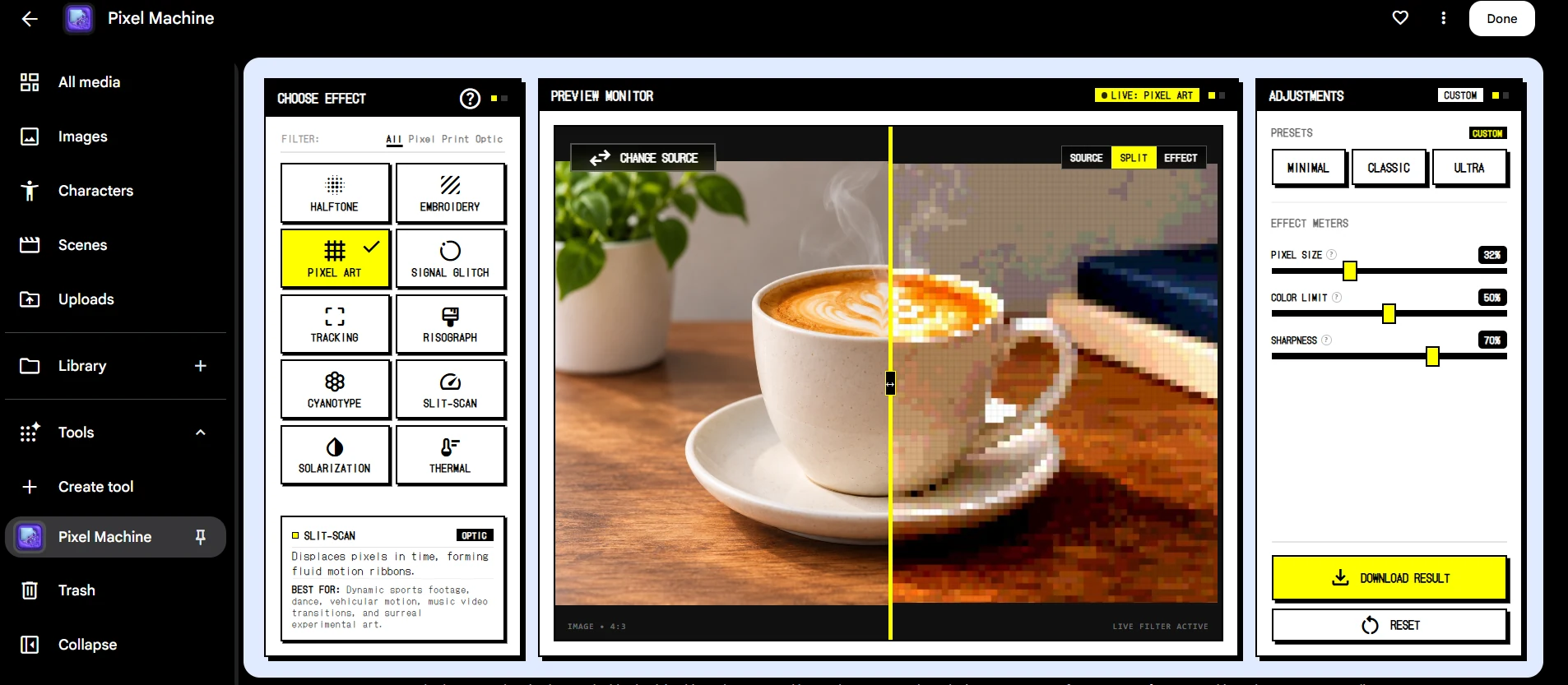
We created an AI-generated coffee-cup source image showing latte art, a ceramic cup and saucer, a wooden table, a green plant and books in the background. We then used that image as the source in Google Flow’s Pixel Machine.
Inside Pixel Machine, we selected Pixel Art and adjusted the controls to the settings visible in our actual split-view screenshot:
| Effect | Pixel Art |
|---|---|
| Preset | Custom |
| Pixel Size | 32% |
| Color Limit | 50% |
| Sharpness | 70% |
We used the Split view to inspect the original on the left and the effect on the right.
The output: recognizable, but intentionally less detailed
The coffee cup, its handle and saucer remained recognizable. The general layout also stayed intact: the plant was still on the left, the books on the right, and the tabletop kept its warm color.
The clearest compromise was the lost fine detail. Smooth latte-art lines became chunky orange-and-cream pixels; subtle shadows and plant leaves turned into simpler blocks. This is appropriate for a retro game aesthetic, but not if your goal is a sharp product photograph or a readable screenshot.

What we liked, and where it falls short
- Worked for the task: the main subject remained identifiable after strong stylization.
- Useful controls: the interface exposed Pixel Size, Color Limit and Sharpness, allowing an intentional rather than purely one-click result.
- Helpful comparison: Split view made the before-and-after differences immediately visible.
- Clear limitation: intricate details, textures and small lettering would be difficult to preserve with this chunky treatment.
What this test does not establish: We tested one source image and one final Custom configuration. We did not benchmark the tool against competitors, evaluate every effect, measure generation time, or record a verified credit cost for this particular run. Those claims would need additional tests.
Our verdict on Pixel Machine: I’d use it for experimental retro graphics, gaming-style concepts or playful visual treatments. I wouldn’t use this Pixel Art setting when the fine details of a product, chart or interface are essential.
What about the other four tools?
Character Poster: for a consistent visual campaign
Created by artist and filmmaker James Gerde, Character Poster turns story concepts into finished poster-style visuals. Based on Google’s examples, I’d consider it when a series of posts needs a common artistic identity. Before committing to a campaign, I’d want to test whether it keeps colors and design direction consistent across several separate ideas.
Character Arc: for a character across different ages
Filmmaker Anurag Tiwari built Character Arc to show the same character at different life stages while maintaining a recognizable appearance. Google says he has used it while developing the documentary Children of the Sun.
For story planning, that’s an interesting problem to tackle. But age progression is not automatically the same as preserving a character across several moving video scenes. For that separate challenge, see our hands-on Google Flow character consistency guide.
Lucid Glass: for striking optical effects
Artist and creative director Ezra Paulekas designed Lucid Glass to recreate prism, halo, refraction and light-bloom effects. I would explore it for an atmospheric portrait or creative music visual, but not for an instructional screenshot where clarity matters more than mood.
Pocket Studio: for filming with fewer camera setups
Created by filmmaker and visual development artist Ryan McCoy, Pocket Studio is designed to turn a single phone recording into more polished shots with alternative camera angles. That’s potentially exciting for short-film creators, but I’d look carefully for continuity problems in the person’s movements, clothing and background between generated views.
Which tool should you try first?
For a beginner experimenting with a single image, my first choice is Pixel Machine. We were able to inspect the controls and produce a recognizable transformation from a straightforward input. That makes its value easier to judge without designing an entire project.
If you want to tell a story about one character’s life, I’d investigate Character Arc instead. If you already shoot your own videos, Pocket Studio may offer more relevant possibilities—provided its generated angles hold up under careful review.
Creators interested in the broader process of scripting, voiceover and editing can also read our guide to starting a faceless YouTube channel with AI.
How to open Google Flow Tools and what they cost
- Open Google Flow in a desktop browser and sign in.
- Open or create a Flow project.
- Find Tools and select an available prebuilt tool such as Pixel Machine.
- Review the source-input options and available effects.
- Check any displayed credit warning before generating or saving media.
- Compare the output with the original rather than judging it in isolation.
According to Google Flow Help, people without a paid Google AI subscription can use prebuilt Tools, while creating custom tools requires an eligible subscription. The official Flow pricing page lists 50 daily Flow credits for non-subscribers. Media generation can consume credits; don’t assume all operations are free merely because a Tool opens without payment.
Final verdict
The five new Google Flow Tools are interesting because they tackle specific creative tasks instead of asking users to solve everything with one long prompt. But the most convincing part of our review wasn’t the announcement—it was seeing how Pixel Machine handled a real image.
What we learned: for an intentionally retro look, Pixel Machine can preserve the recognizable subject while simplifying fine detail. That’s useful for some creative work and a drawback for other work. I would try it before buying a subscription specifically for these tools, then evaluate whether the output meets a real project need.
We have not yet tested Character Poster, Character Arc, Lucid Glass or Pocket Studio. We’ll treat those as documented possibilities until we have firsthand evidence.
Sources and how this article was made
Google’s official announcement (November 12, 2026) confirms the names, creators and intended capabilities of all five tools. Google Flow Help explains Tools access, and Google Flow’s official website lists subscription options and credits.
Our Pixel Machine observations come from a real test using an AI-generated source image, a saved Google Flow Split-view screenshot and the downloaded output displayed above. The four other tools were researched, not tested; all other recommendations are editorial judgments based on the documented use cases.