
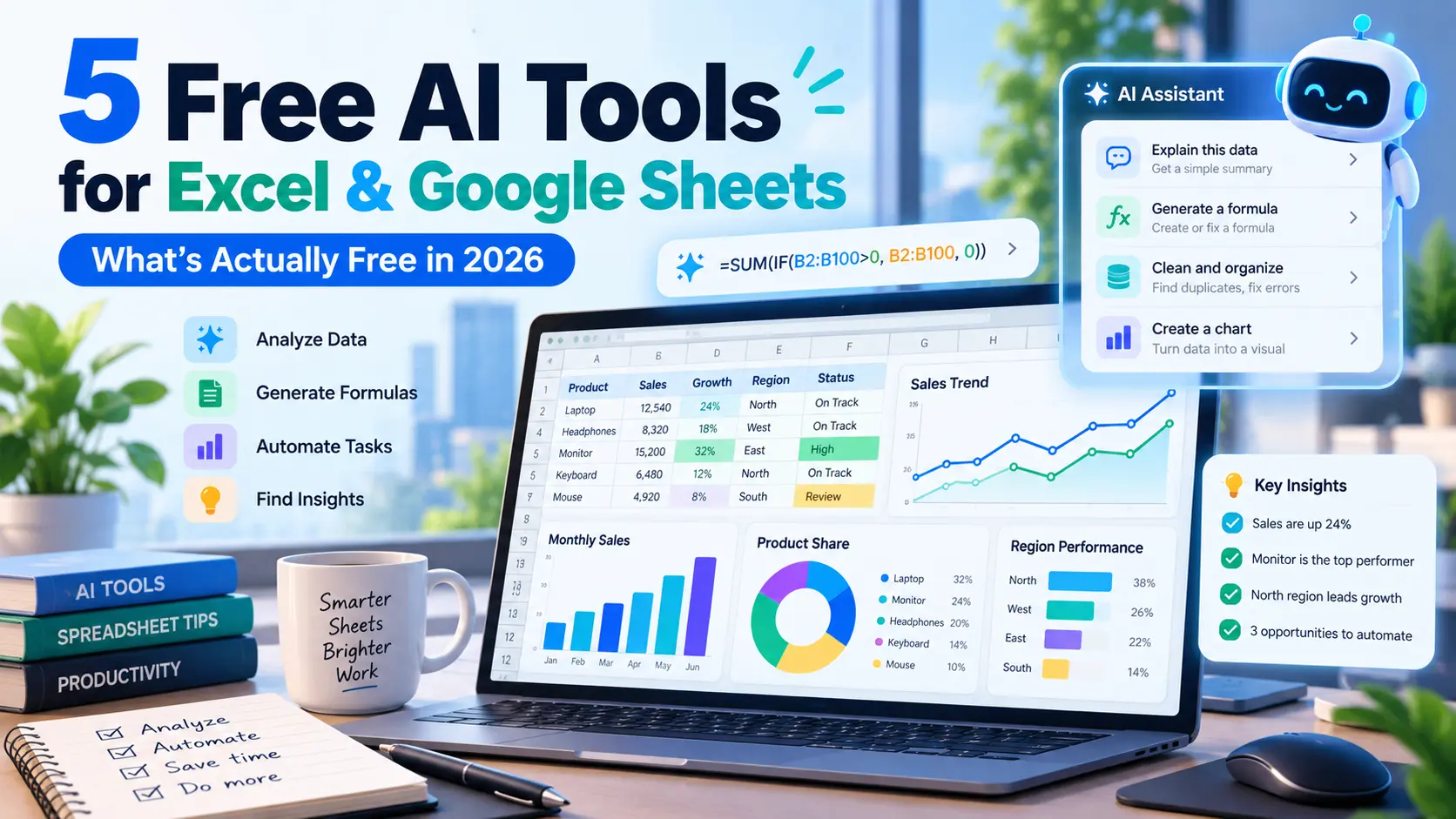
Spreadsheets are powerful, but they can also be frustrating. You may know exactly what you want Excel or Google Sheets to do and still get stuck on a formula, a messy column, a chart, or a dataset that is difficult to understand.
AI tools can help with those jobs. Some can write or explain formulas from plain-English instructions. Others can read an uploaded spreadsheet, summarize patterns, clean text, or work directly inside Google Sheets.
This guide focuses on five tools that currently offer a free plan, free access with limits, or a free-to-start option. For this October 2026 update, we checked the products’ current official help, pricing, or marketplace pages rather than assuming that an older “free” offer still exists.
Free does not always mean unlimited. Check the limits before you build a workflow around a tool.
If you want a broader list of useful AI products beyond spreadsheets, see our 5 Free AI Tools You Probably Haven’t Tried Yet.
Quick Comparison: Which AI Spreadsheet Tool Fits Your Task?
| Tool | Best for | Works with | Free entry point | Main catch |
|---|---|---|---|---|
| ChatGPT | Formula help, spreadsheet Q&A and file analysis | Excel / CSV / spreadsheet uploads | Free plan supports spreadsheet uploads and data analysis | Free-plan upload and usage limits apply |
| Gemini | Spreadsheet questions, summaries and charts | Uploaded spreadsheets / Google Drive files | Free Gemini access supports file analysis with limits | Higher limits and some Workspace features require paid plans |
| AI for Sheets | AI formulas and sheet actions inside Google Sheets | Google Sheets | Free to start | Third-party add-on; limits and paid features apply |
| Rows | AI-assisted analysis in a spreadsheet-style workspace | Rows platform | $0 free plan | Only 5 AI Tasks per month on Free |
| Better Analyst | Uploading small files and asking data questions | Web app / files | $0 free plan | 10 messages and 25 AI Actions per month; spreadsheet add-ons are paid |
How We Chose These Tools
This is not a claim that these are the five “best” spreadsheet tools in every situation. We have not ranked them with a lab-style benchmark.
Instead, we chose tools that cover different beginner use cases and currently have a usable free entry point. We checked:
- Whether the tool is still active in October 2026.
- Whether a free plan, free access, or free-to-start option is currently available.
- What spreadsheet task the tool is actually useful for.
- The main limitation a beginner should know before signing up.
- Whether the tool works inside a spreadsheet or requires uploading data elsewhere.
Free-plan details can change. If a limit matters to your workflow, open the provider’s current pricing or help page before relying on it.
1. ChatGPT — Best for Formula Help and Spreadsheet Analysis
For many spreadsheet problems, you do not need an add-on. ChatGPT can help you write formulas, explain errors, summarize a spreadsheet, and analyze uploaded spreadsheet or CSV files.
For example, you could ask:
I have dates in column A and revenue in column C. Write an Excel formula that totals revenue only for October 2026, then explain the formula in simple language.
You can also upload a spreadsheet and ask questions such as:
- Which month had the highest sales?
- Which rows contain missing values?
- Create a chart showing revenue by category.
- Explain why this formula is returning an error.
- Summarize the main trends in this spreadsheet.
OpenAI’s current file-upload documentation says spreadsheet uploads are available on Free and paid ChatGPT plans, subject to plan-specific limits. Free users currently have a lower upload allowance than paid users. OpenAI file-upload documentation.
Best for
- Beginners who need occasional formula help.
- Explaining an unfamiliar Excel or Sheets formula.
- Uploading a small spreadsheet and asking questions about it.
- Creating charts or summaries without installing an extension.
Free-plan catch
Free access has usage and file-upload limits. If you analyze spreadsheets frequently, you may reach those limits faster than a casual user.
One thing to watch
AI-generated formulas can be wrong. Test a new formula on a few rows before copying it across an entire workbook. Our How to Fact-Check AI Answers guide explains a simple verification process.
If you want better results from formula requests, our How to Write Perfect AI Prompts guide covers how to give clearer context.
2. Gemini — Best for Asking Questions About Uploaded Spreadsheets
Google’s Gemini app can also work with uploaded spreadsheets. You can ask it to summarize data, find patterns, answer questions about a file, and create charts from spreadsheet data.
A useful beginner workflow is:
- Upload the spreadsheet.
- Explain what each important column represents.
- Ask one specific question at a time.
- Check the answer against the original rows before using it.
Google’s current Gemini help says users can upload spreadsheets and ask Gemini to analyze them, with usage limits that vary by account and plan. Paid Google AI plans provide higher limits. Google Gemini file-analysis help.
Best for
- Google users who already use Gemini.
- Summarizing or exploring an uploaded spreadsheet.
- Creating a chart from uploaded data.
- Asking plain-English questions about a file.
Free-plan catch
Free Gemini access has limits, and the full Gemini experience built directly into Google Sheets is a separate product capability. Do not assume that every Gemini-in-Sheets feature is included with a normal free Google account.
Google documents Gemini features inside Sheets separately and ties availability to eligible Workspace or Google AI access. Google Gemini in Sheets help.
One thing to watch
A chart can look convincing even when the underlying interpretation is wrong. Always check which columns, filters, date ranges, and units were used.
3. AI for Sheets — Best for AI Formulas Inside Google Sheets
AI for Sheets is a third-party Google Workspace add-on that brings AI formulas and an AI agent directly into Google Sheets.
Its current Marketplace listing describes features such as:
- AI formulas inside cells.
- Formula generation.
- Sheet analysis and editing.
- Bulk writing and translation.
- Web research.
- Image and PDF understanding.
The listing says the add-on is free to start and does not require an API key for its basic setup. Google Workspace Marketplace listing.
A simple example
If you have a column of customer comments, you could use an AI formula to summarize or classify each row rather than copying every comment into a separate chatbot conversation.
Best for
- People who work in Google Sheets every day.
- Bulk text classification or summarization.
- Users who want AI functions directly inside cells.
- People who want an assistant that can inspect or modify a sheet.
Free-plan catch
“Free to start” is not the same as unlimited free use. Limits and paid features can change, so check the current add-on information before using it for a large workflow.
Privacy note
This is a third-party add-on. Before connecting customer, employee, financial, medical, or other sensitive data, review the permissions requested by the add-on and the provider’s privacy terms.
4. Rows — Best for Trying an AI-First Spreadsheet Workspace
Rows is a spreadsheet-style platform with AI features built into the product. It is not simply an Excel or Google Sheets extension.
The free plan is useful if you want to experiment with an AI-assisted spreadsheet environment for tasks such as analysis, data cleanup, charts, reports, and imported data.
Rows currently lists a permanent $0 Free plan with unlimited spreadsheets and 5 AI Tasks per month. Rows pricing.
Best for
- People who are open to using a spreadsheet platform other than Excel or Google Sheets.
- Occasional AI-assisted analysis.
- Simple reports and dashboards.
- Trying an AI data analyst without paying immediately.
Free-plan catch
Five AI Tasks per month is a small allowance. The free tier is better for occasional use or testing than for a heavy daily AI workflow.
One thing to watch
Moving to another spreadsheet platform can create friction if your team depends on Excel-specific features, macros, or an established Google Sheets workflow.
5. Better Analyst — Best for Uploading a Small Spreadsheet and Asking Questions
Better Analyst is a web-based AI analysis tool that lets you upload files and ask questions about the data in natural language.
Its current free plan includes:
- 10 messages per month.
- 25 AI Actions per month.
- 1 file per chat.
- Up to 5 total file uploads.
- A 5 MB file-upload limit.
These limits are listed in Better Analyst’s current documentation. Better Analyst pricing.
Best for
- Students working with small datasets.
- Beginners who prefer a chat-style interface.
- Occasional spreadsheet analysis.
- People who want to ask questions about a file without installing an add-on.
Free-plan catch
The free plan is limited, and Better Analyst’s Excel and Google Sheets add-ons are listed as paid-tier features. So free users should think of it primarily as a small-file web analysis tool.
One thing to watch
If the dataset is larger than the free file limit or you need many follow-up questions, the free tier can run out quickly.
Which Tool Should You Try First?
| If you want to… | Start with |
|---|---|
| Write or fix an Excel/Sheets formula | ChatGPT |
| Ask questions about an uploaded spreadsheet | Gemini or ChatGPT |
| Run AI formulas directly inside Google Sheets | AI for Sheets |
| Try an AI-first spreadsheet workspace | Rows |
| Upload a small file and analyze it in a chat-style tool | Better Analyst |
For most beginners, ChatGPT or Gemini is the easiest starting point because you can test a spreadsheet problem without installing anything.
If you later find yourself repeating the same task across many rows, an add-on or dedicated spreadsheet tool may save more time.
What About GPT for Sheets and SheetAI?
There are many other spreadsheet AI products, but not every “free” label means the same thing.
GPT for Sheets / GPT for Work
GPT for Work offers spreadsheet add-ons for Excel and Google Sheets and currently advertises a free trial for new users rather than an unlimited free plan. GPT for Work installation page.
That can still be useful for testing the product, but I would not describe it as permanently free.
SheetAI
SheetAI currently offers a $0 bring-your-own-key option. The SheetAI layer can be free, but you may still pay OpenAI, Gemini, Claude, or another model provider for API usage. SheetAI pricing.
For a complete beginner, that makes it less straightforward than using ChatGPT, Gemini, or a simple free-to-start add-on.
Three Useful Spreadsheet Prompts to Try
1. Formula prompt
Write an Excel formula that sums column D only when column B contains ‘Completed’. Explain the formula before I use it.
2. Data-cleaning prompt
Look at these values and suggest a safe method to standardize the phone-number format. Do not change the original data yet.
3. Analysis prompt
Analyze this spreadsheet and identify the three biggest changes month over month. Tell me which columns you used and flag anything uncertain.
Those extra instructions—explain the formula, do not overwrite data, and state which columns were used—make it easier to review the AI’s work.
Can AI Clean Messy Spreadsheet Data?
Yes, but use it carefully.
AI can help with tasks such as:
- Standardizing text formats.
- Classifying rows.
- Finding likely duplicates.
- Extracting information from text.
- Suggesting formulas for cleanup.
- Explaining inconsistent values.
Before making bulk changes, keep a copy of the original file. If the AI changes 5,000 rows incorrectly, having a clean backup matters more than how quickly the automation ran.
A Privacy Check Before Uploading a Spreadsheet
Spreadsheets often contain more sensitive information than people realize.
Before uploading a file to any AI service, check whether it contains:
- Customer names or contact details.
- Employee information.
- Salary or payroll data.
- Financial records.
- Health information.
- Confidential sales or company data.
- Passwords, tokens, IDs, or other credentials.
When possible, remove unnecessary personal data, use a small sample, or anonymize the file before testing an AI workflow. For workplace data, follow your employer’s security rules.
A free AI tool is not worth exposing information that should never have left your organization.
AI Can Still Make Spreadsheet Mistakes
AI assistants can produce formulas, charts, and explanations that look polished but are wrong.
Common spreadsheet errors include:
- Referencing the wrong column.
- Using the wrong date range.
- Counting duplicates twice.
- Confusing percentages with percentage points.
- Using a formula that works in Excel but not Google Sheets, or vice versa.
- Misreading blanks, text values, or currency formats.
- Drawing a conclusion the data does not support.
Our guide AI Hallucinations Explained: Why AI Gives Wrong Answers explains why confident AI output can still be incorrect.
A simple rule works well: test formulas on a small sample, compare totals with the original data, and verify important conclusions before using them in reports or decisions.
Final Thoughts
AI can make spreadsheets easier, but you do not need to install every tool on this list.
Start with the problem you already have.
- Need a formula? Try ChatGPT.
- Need to explore an uploaded spreadsheet? Try Gemini or ChatGPT.
- Need AI functions inside Google Sheets? Try AI for Sheets.
- Want an AI-first spreadsheet workspace? Try Rows.
- Want to ask questions about a small uploaded file? Try Better Analyst.
Use the free version long enough to learn whether the tool genuinely saves you time. Then decide whether paying for more usage is worth it.
Let AI help with the spreadsheet—but verify the numbers before you trust the result.
Frequently Asked Questions
Can ChatGPT analyze Excel files for free?
Yes. ChatGPT currently supports spreadsheet uploads and data analysis on the Free plan, subject to free-plan upload and usage limits.
Can Gemini analyze spreadsheets?
Yes. Gemini Apps can analyze uploaded spreadsheets and create insights or charts, with account and plan limits. Higher limits are available on paid Google AI plans.
Is Gemini built into Google Sheets free?
Do not assume so. Google’s built-in Gemini features in Sheets have separate eligibility requirements and are associated with eligible Workspace or Google AI access.
Is AI for Sheets free?
Its current Google Workspace Marketplace listing describes it as free to start. That does not guarantee unlimited free usage, and paid features may apply.
Is Rows free?
Yes. Rows currently offers a permanent $0 plan, but it includes only 5 AI Tasks per month.
Is Better Analyst free?
Yes. Better Analyst has a limited $0 plan with 10 messages and 25 AI Actions per month. Its Excel and Google Sheets add-ons are paid-tier features.
Should I upload confidential spreadsheets to AI tools?
Only after reviewing the service’s privacy and data-handling terms and following your organization’s policies. Remove or anonymize sensitive data when possible.
Can AI-generated spreadsheet formulas be wrong?
Yes. Always test important formulas and calculations against known examples or the original data before relying on them.
Sources & Further Reading
OpenAI — Uploading files and spreadsheets to ChatGPT
Google — Upload and analyze files in Gemini Apps
Google — Gemini in Google Sheets
Google Workspace Marketplace — AI for Sheets


