
OpenAI has introduced a new type of ChatGPT agent called a dot.
Unlike a normal ChatGPT conversation that usually waits for you to ask another question, a dot is designed to take on ongoing responsibilities, keep working between conversations, use connected apps, and bring progress or decisions back to you.
OpenAI describes dots as always-on agents powered by GPT-6 Astra. Each dot has its own cloud computer and can connect to supported apps through OpenAI’s plugin ecosystem. OpenAI says that ecosystem includes more than 4,000 apps.
That sounds powerful, but it also raises obvious questions:
- How is a dot different from normal ChatGPT?
- Can it really work without you constantly prompting it?
- What apps and data can it access?
- Can it use your computer?
- Does it need approval before taking actions?
- Who can use Dots right now?
- How is it different from ChatGPT Work?
This beginner-friendly guide explains what OpenAI Dots actually do, without treating them like magic automation.
Updated October 2026: OpenAI Dots are a newly released feature and are still rolling out. Features, availability, limits, and supported integrations may change.
Quick Answer: What Is an OpenAI Dot?
An OpenAI dot is an always-on AI agent inside ChatGPT that can take responsibility for ongoing tasks rather than handling only one conversation at a time.
You can give it a goal, connect the apps it needs, define what it is allowed to do, and let it continue working toward that goal.
A dot can:
- remember context for ongoing work
- use connected apps
- research in the background
- run scheduled or recurring tasks
- use its own cloud computer
- bring progress and results back to you
- ask for your judgment when necessary
- work with ChatGPT Work or Codex for certain tasks
OpenAI says Dots are powered by GPT-6 Astra and are designed to keep making progress even between conversations.
Normal ChatGPT helps you with a conversation. A dot can take responsibility for an ongoing job.
How Is a Dot Different From Normal ChatGPT?
Traditional ChatGPT is primarily conversational.
You ask something, ChatGPT responds, and you decide what to do next.
A dot can operate more continuously.
For example, instead of asking:
What meetings do I have tomorrow?
you could potentially give a dot an ongoing responsibility such as:
Review my calendar every morning and tell me what needs preparation.
OpenAI says scheduled runs and proactive updates can appear directly in the dot conversation, and users can review scheduled work from the dot’s profile.
That turns AI from something you repeatedly prompt into something that can keep track of a responsibility over time.
Regular ChatGPT vs ChatGPT Work vs OpenAI Dots

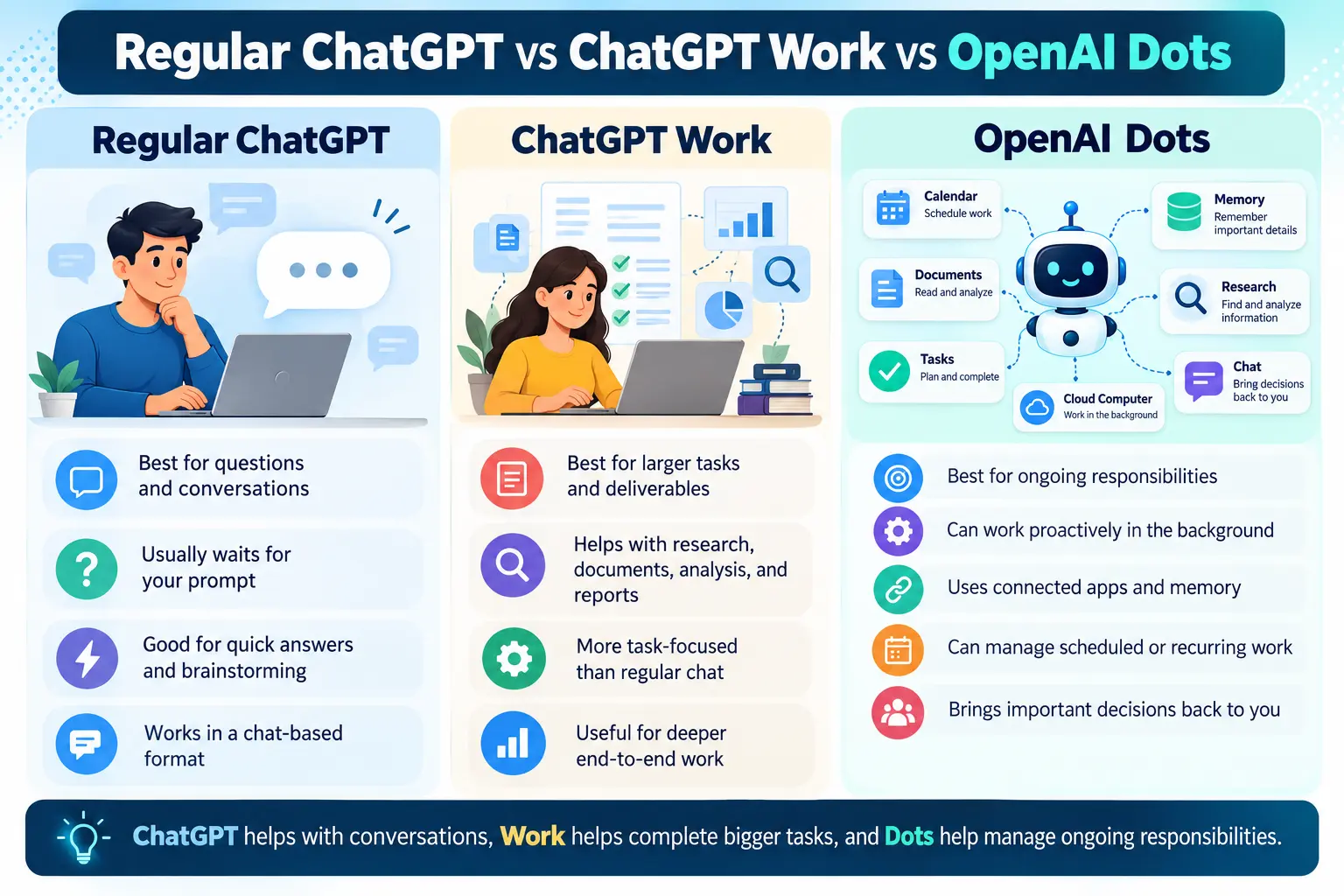
Feature | Regular ChatGPT | ChatGPT Work | OpenAI Dot |
Main purpose | Questions and conversation | Complete larger tasks | Ongoing responsibility |
Waits for your prompt | Usually | Usually task-driven | Can also work proactively |
Connected apps | Where supported | Yes | Yes |
Cloud computer | Depends on workflow | Supported for Work tasks | Each dot has its own cloud computer |
Scheduled work | Limited by feature | Yes | Yes |
Ongoing memory/context | Chat context/memory | Project/task context | Designed for continuing responsibilities |
Can coordinate Work/Codex | No direct ongoing role | Work itself | Yes |
ChatGPT Work is designed for more involved tasks such as research, analysis, documents, spreadsheets, presentations, reports and other end-to-end work. A dot sits at a higher ongoing level: it can keep track of responsibilities and can start or manage tasks in Work or Codex when appropriate.
So you might use:
- ChatGPT to ask a question.
- Work to produce a detailed report.
- A dot to keep monitoring the project and decide when another task needs to happen.
How Do OpenAI Dots Work?
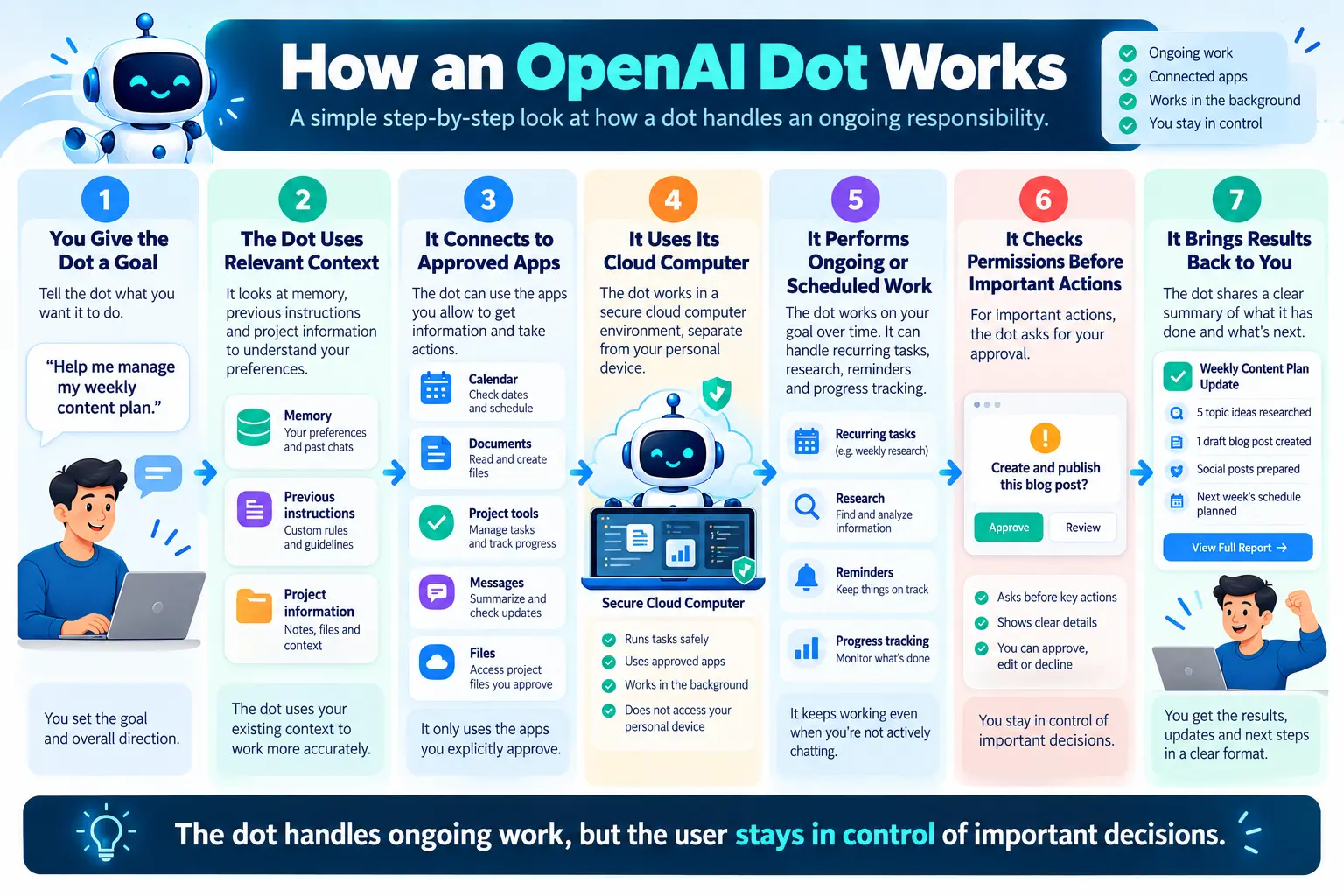
A dot begins with a goal.
You describe what you want it to be responsible for and give it the context it needs.
According to OpenAI, the dot can then work through the problem, decide what should happen next, and bring results back for review. It is also designed to ask you when a decision needs human judgment.
1. A Dedicated Cloud Computer
Each dot has its own cloud computer.
That lets it use tools and carry out computer-based work without automatically accessing your own computer.
Your local computer remains separate unless you explicitly connect it.
This distinction is important.
Creating a dot does not automatically give OpenAI an agent unrestricted access to everything on your laptop.
2. Connected Apps
Dots can work with information from apps you choose to connect.
OpenAI says its plugin ecosystem provides access to more than 4,000 apps, although the apps available to an individual user can depend on their account and region.
A connected app might allow a dot to work with things such as:
- calendar information
- workplace tools
- project-management systems
- documents
- communication platforms
You still choose which supported apps are connected.
3. Memory and Context
A dot can remember context related to ongoing work.
OpenAI says a dot receives relevant ChatGPT memories and can also create memories of its own, including information learned from connected apps.
That means you should not have to explain the same project from scratch every morning.
For example, a dot helping manage a recurring content project could remember:
- the purpose of the project
- your preferred format
- previous decisions
- ongoing tasks
- connected information relevant to the work
But memory also makes permissions and privacy settings more important, which we will discuss later.
Can OpenAI Dots Work While You’re Away?
Yes, within the controls OpenAI provides.
One of the biggest differences between Dots and ordinary chat is that a dot can perform certain kinds of work in the background.
OpenAI calls one form of this proactive research.
When you are not actively working with the dot, it can review information from apps you have connected and look for useful ways to help. However, OpenAI says proactive research uses restricted read-only tools: during that background research, it cannot send messages, modify app content, or take control of your computer or browser.
That is an important limitation.
“Always-on” does not mean the dot is freely clicking, sending and changing everything while you sleep.
Can a Dot Run Scheduled Tasks?
Yes.
You can ask a dot to create reminders or perform recurring checks.
OpenAI gives the example of asking a dot to review your calendar every morning and tell you what is coming up.
Scheduled work can be reviewed in the dot profile, where tasks may appear as:
- In progress
- Scheduled
- Completed
You can also change schedules or pause the dot.
This could be useful for recurring jobs such as:
- preparing a daily schedule summary
- checking for project updates
- monitoring a recurring workflow
- organizing routine research
- reminding you about deadlines
The exact capabilities still depend on the apps and permissions available to your dot.
Practical Examples of What a Dot Could Do
For a Content Creator
A dot could help keep track of a content workflow.
For example:
- review upcoming content tasks
- research a topic
- organize source material
- prepare a draft for your review
- identify unfinished work
- remind you about publication deadlines
It could then use Work for a larger deliverable when appropriate.The important part is that you remain responsible for checking facts, originality and final publication quality. If you use AI for video production, see our How to Start a Faceless YouTube Channel With AI guide.
For Daily Tool Guide readers, this is especially relevant because AI agents can save time, but they can still produce incorrect information. Our guides on AI Hallucinations Explained and How to Fact-Check AI Answers cover why verification is still necessary.
For a Project Manager
A dot could monitor project context across connected tools and help identify:
- deadlines
- unresolved tasks
- upcoming meetings
- missing information
- changes that require attention
Instead of repeatedly asking an AI to recreate the project picture, the dot is designed to maintain context over time.
For a Researcher
A dot could assist with:
- ongoing topic research
- tracking information
- organizing documents
- recurring checks
- preparing summaries for review
But researchers should still open original sources and verify important claims rather than treating an agent’s summary as proof.
For a Developer
Dots can also interact with Codex workflows.
OpenAI says a dot can create tasks in Codex cloud environments, provided the environment has already been created.
This could make a dot useful for coordinating longer-running technical projects rather than simply answering coding questions.
Can an OpenAI Dot Use Your Own Computer?
Not automatically.
A dot begins with its own cloud computer.
Local computer access is optional and starts turned off.
If a user chooses to connect a computer through the ChatGPT desktop app and explicitly allows access, the dot can then work with supported local files and tools. Access can also be revoked.
This means there is an important difference between:
- Cloud computer access
- Access to your personal computer
The second requires an additional user decision.
For sensitive work, users should be conservative about which files, apps and permissions they provide.
How Permissions and Approvals Work
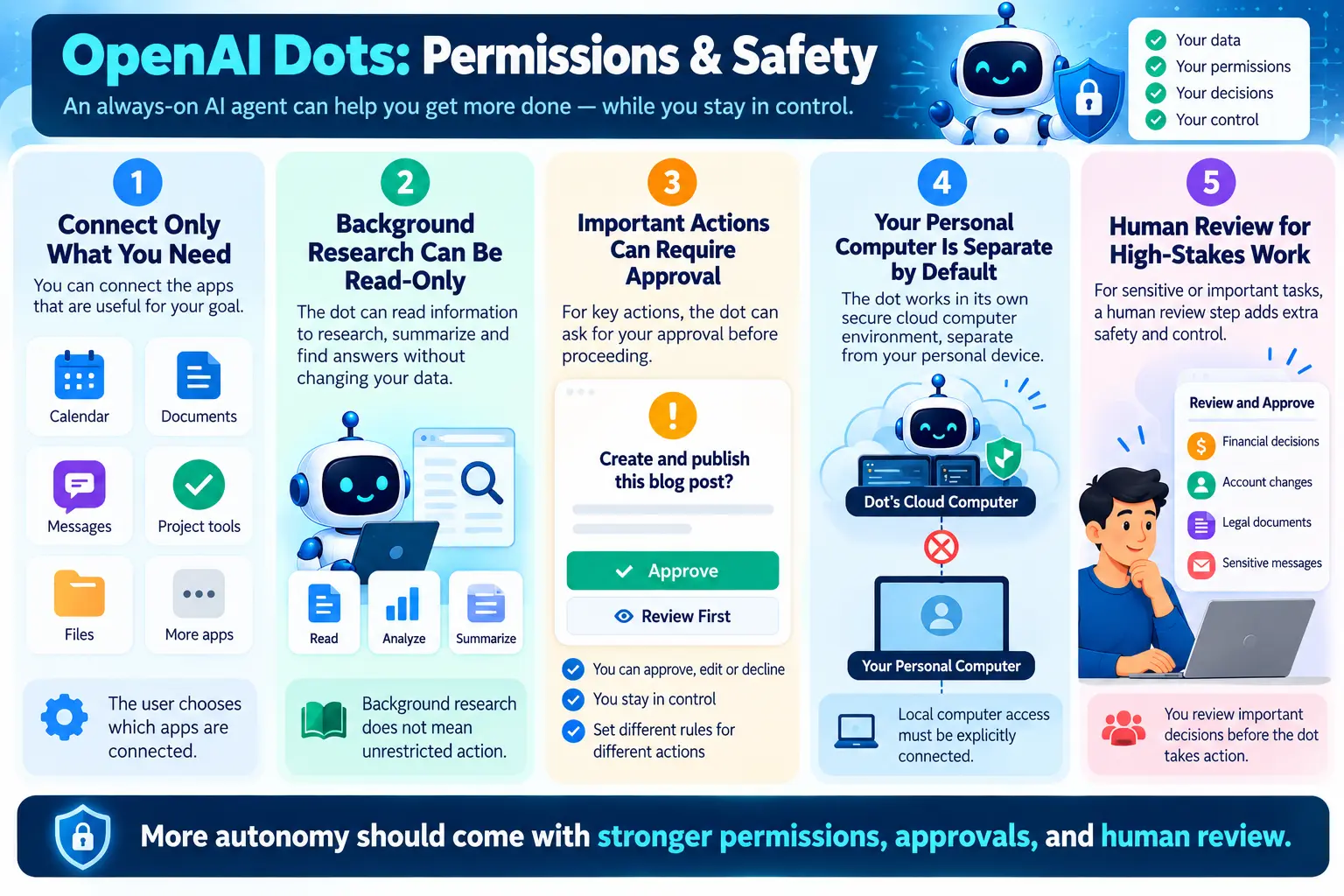
An always-on agent would be risky if it could perform every action without limits.
OpenAI therefore gives Dots rules and approval controls.
Dots begin with built-in rules that determine when they may proceed and when they need approval.
Users can also create Custom Rules for supported actions.
A rule can instruct the dot to:
- take an action without asking
- act when the action was pre-approved
- ask before taking the action
- hand the action back to you
Built-in safety requirements still apply even when custom rules are used.
For example, you might let a dot organize information independently but require approval before sending an external message.
That is generally a better approach than giving broad permission for every possible action.
What Is Auto-Review?
OpenAI says Dots use a system called auto-review to evaluate actions that could affect accounts or share information.
The system compares the action against:
- your instructions
- Custom Rules
- safety requirements
It then helps determine whether the dot can proceed, needs approval, or should hand the action to you.
Some sensitive actions remain with the user. OpenAI gives changing a password as one example.
These protections reduce risk, but they do not make an agent infallible.
OpenAI explicitly warns that Dots can still make mistakes and recommends reviewing consequential work.
Are OpenAI Dots Safe to Use?
There is no meaningful answer that is simply “yes” or “no.”
The more useful question is:
What level of responsibility should you give an AI agent?
OpenAI includes controls for:
- app permissions
- cloud-computer separation
- action approvals
- custom rules
- read-only proactive research
- safety monitoring
- pausing the dot
OpenAI says its safeguards may pause or stop work when a safety concern is detected.
But an AI agent can still misunderstand instructions, use incorrect information, or make a poor decision.
The more serious the consequence, the more human review you should require.
For example, it is very different to let a dot organize tomorrow’s reading list versus send a legal document, make a purchase or change important account information.
Keep approval requirements strong for consequential actions.
What About Privacy?
Privacy depends partly on the type of account and what you choose to connect.
OpenAI says content from ChatGPT Business, Enterprise and Edu workspaces is not used to improve its models by default.
On personal ChatGPT plans, users can control whether eligible conversations and work are used for model improvement. OpenAI also says it does not directly train on proactive research or a dot’s private notes to itself, although information from that work may inform an eligible conversation or task depending on settings.
There is another detail worth knowing:
Disconnecting an app stops the connection, but according to OpenAI’s Help Center it does not automatically delete information the dot has already obtained from that app. Resetting the dot deletes its conversations, saved memories and scheduled tasks.
So before connecting sensitive services:
- review permissions
- connect only what the dot actually needs
- understand your account’s data settings
- use approval rules
- periodically review connected apps
Where Can You Talk to a Dot?
OpenAI says dots can be used through ChatGPT and can also integrate with workplace communication channels.
The launch documentation includes support for:
- ChatGPT desktop
- ChatGPT web
- ChatGPT mobile after setup
- Slack
- Microsoft Teams
OpenAI also says texting is being introduced separately in limited availability.
A dot is initially created on desktop web or the ChatGPT desktop app.
At launch, OpenAI says you cannot create a dot from mobile, and mobile web does not support Dots.
Because the feature is new, these limitations may change.
Who Can Use OpenAI Dots?
As of October 2026, Dots are still rolling out.
OpenAI’s current Help Center says Dots are available to:
- ChatGPT Pro users in eligible markets, excluding the European Economic Area, Switzerland and the UK at launch.
- Business Premium users across supported ChatGPT regions.
- Enterprise users, including Edu and Healthcare, through a beta that workspace administrators must enable.
OpenAI says rollout is gradual, so even an eligible user may need to wait several days before the feature appears.
At launch, OpenAI does not list Free, Go or Plus among the plans receiving Dots.
Does a Dot Cost Extra?
OpenAI says the first dot is included with eligible Pro and Business Premium plans at no additional cost.
Those plans include an allowance for deeper work, and OpenAI says users will eventually be able to add additional dots or increase the amount of work a dot can perform.
One important distinction:
Talking with your dot does not count toward normal ChatGPT usage limits, according to OpenAI.
However, if your dot launches or manages work in Codex or ChatGPT Work, those tasks use the normal limits for those products.
OpenAI Dots vs Traditional AI Assistants
Traditional AI assistants generally follow this pattern:
You ask → AI answers → session ends or waits
Dots aim for something closer to:
You define responsibility → agent keeps context → agent works → agent updates you → you review important decisions
That is a meaningful shift.
It moves AI closer to an ongoing collaborator rather than a question-answering interface.
But it also means users need to think differently about:
- permissions
- connected data
- approval rules
- recurring work
- fact-checking
- accountability
The more autonomy an AI system receives, the more important those controls become.
What Dots Cannot Replace
Dots may reduce repetitive work, but they do not remove the need for human judgment.
You should still personally review work involving:
- important financial decisions
- contracts
- legal commitments
- sensitive communications
- healthcare decisions
- account security
- public claims
- critical business actions
OpenAI itself warns that a dot can make mistakes even while following your rules.
The most useful way to think about a dot is therefore not:
An AI that I can trust with everything.
but:
An AI agent I can give carefully defined responsibilities to, with human review where the consequences matter.
Should Beginners Use OpenAI Dots?
If you already use ChatGPT for repeated workflows, Dots could be useful.
A beginner could start with low-risk responsibilities such as:
- recurring research
- calendar summaries
- reminders
- organizing information
- tracking project tasks
Then gradually expand what the dot can do after understanding the permission system.
Avoid beginning by connecting every account and allowing every action.
Start with one clear responsibility.
See how the dot behaves.
Review its work.
Then decide whether additional access would genuinely help.
A Simple Beginner Workflow
Step 1: Choose One Responsibility
Instead of saying:
Handle my entire business.
choose something specific:
Help me keep track of my weekly content plan.
Step 2: Connect Only Necessary Apps
If the task only needs a calendar and one project-management tool, do not connect unrelated services.
Step 3: Set Approval Rules
Allow low-risk organizational work.
Require approval for external communication or consequential actions.
Step 4: Review the First Few Results
Check whether:
- information is correct
- priorities are reasonable
- actions match your instructions
- unnecessary access is being requested
Step 5: Expand Slowly
Only add more responsibility when the existing workflow works reliably.
This approach is less exciting than giving an AI agent unlimited access on day one.
It is also much safer.
What OpenAI Dots Mean for the Future of ChatGPT
Dots represent a broader shift in AI products.
The first stage of mainstream generative AI was mostly about asking questions and generating content.
The next stage increasingly involves AI systems that can:
- remember ongoing goals
- use software
- coordinate tasks
- monitor information
- work on schedules
- take approved actions
Dots are OpenAI’s latest attempt to bring that type of agentic AI into everyday ChatGPT use.
Whether Dots become useful for most people will depend less on how impressive the technology sounds and more on whether they can reliably handle real recurring work without creating additional supervision.
For now, the most sensible approach is to treat Dots as powerful assistants with controlled autonomy, not completely independent replacements for people.
Frequently Asked Questions
What is an OpenAI Dot?
A dot is an always-on AI agent in ChatGPT designed to take responsibility for ongoing work. It can use connected apps, its own cloud computer, memory and scheduled tasks while bringing important decisions back to the user.
Are OpenAI Dots the same as ChatGPT?
No. Dots operate within the ChatGPT ecosystem, but they are designed for ongoing responsibilities and proactive work rather than only responding to individual prompts.
What model powers OpenAI Dots?
OpenAI says Dots are powered by GPT-6 Astra.
Can a dot work when I’m not using ChatGPT?
Yes. Dots can perform scheduled work and certain background research. OpenAI says proactive background research uses restricted read-only tools.
Can a dot access my computer?
Not automatically. A dot has its own cloud computer. Local-computer access starts disabled and must be explicitly connected through the ChatGPT desktop app.
Can a dot send messages without asking me?
That depends on its permissions, rules and the particular action. Users can configure supported actions to proceed automatically, require approval or be handed back to them. Built-in safety controls continue to apply.
Can Dots connect to other apps?
Yes. OpenAI says its plugin ecosystem can connect Dots to more than 4,000 apps, though actual availability depends on the account and integration.
Are OpenAI Dots available on ChatGPT Plus?
At launch, OpenAI’s current documentation lists Pro, Business Premium and an Enterprise beta. Plus is not currently listed among the plans receiving Dots.
Can Dots make mistakes?
Yes. OpenAI explicitly says Dots can make mistakes and recommends reviewing consequential work.
Can I pause a dot?
Yes. OpenAI provides a pause control, and scheduled work can also be reviewed and managed from the dot profile.
Final Thoughts
OpenAI Dots are one of the clearest signs that ChatGPT is moving beyond a simple question-and-answer tool.
A dot can maintain context, work with connected apps, use a cloud computer, perform recurring work and continue making progress between conversations.
That could make AI significantly more useful for repetitive or ongoing work.
But more autonomy also creates more responsibility for the user.
Before giving an AI agent access to important systems, think about:
- What does it actually need access to?
- Which actions should require approval?
- What information should still be checked manually?
- What could happen if the agent makes a mistake?
The best use of Dots is unlikely to be handing everything over to AI.
It is giving AI well-defined responsibilities while keeping human judgment where it matters most.